When Talkie is minimized and running in the background, incoming messages will still play automatically in real time. Your voice will only be recorded when you press the “record” button.
Android Device
Note: To use Talkie in the background, please make sure both notification and floating window access are allowed. Otherwise, Talkie won’t work properly in the background.
You can use Talkie in the background via a floating window.
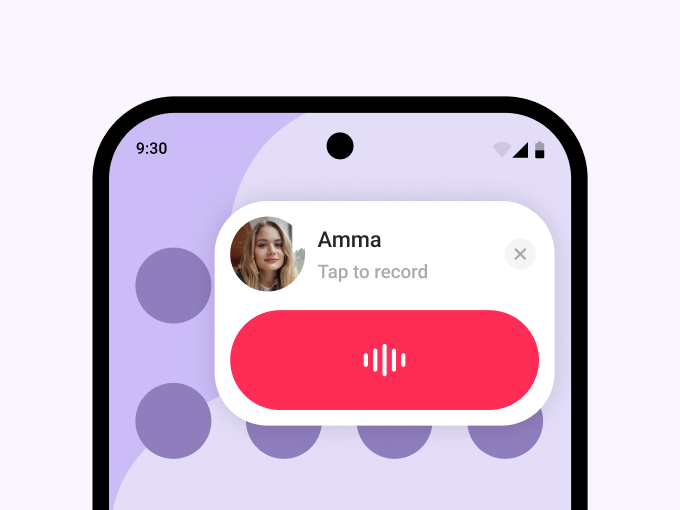 |
By tapping the “record” button, start recording your message and send it.
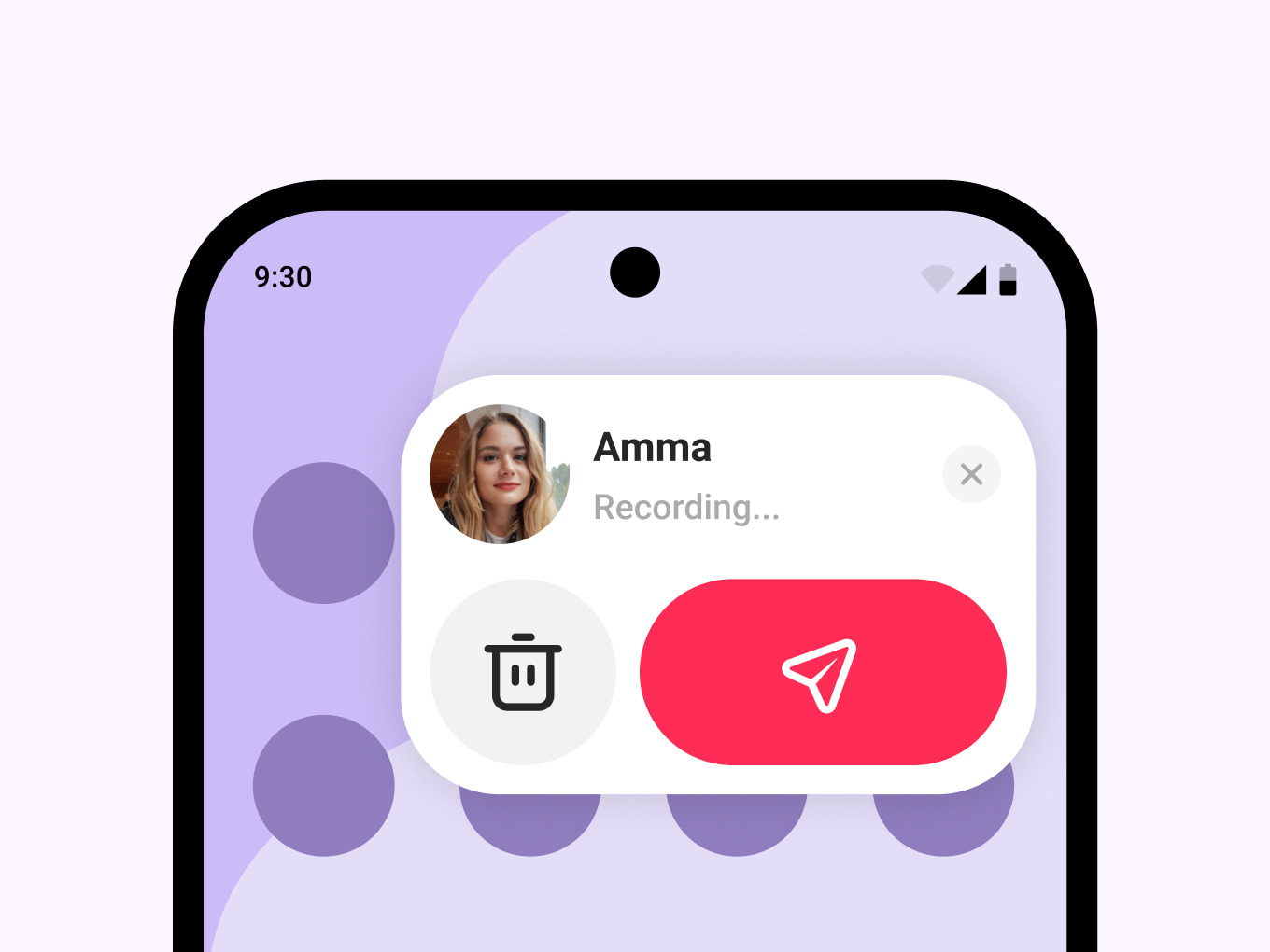 |
You can also quickly return to JusTalk by tapping the floating window, or exit Talkie by tapping the “close” button on the floating window.
The floating window shows your most recent contact, and your voice messages will be sent directly to them.
iOS Device
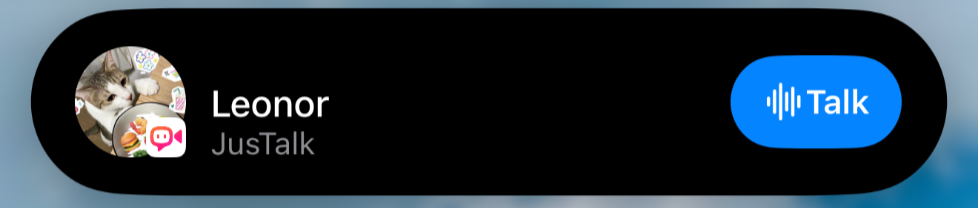
Look for the blue ripple in the status bar — it means Talkie is on.
 |
 |
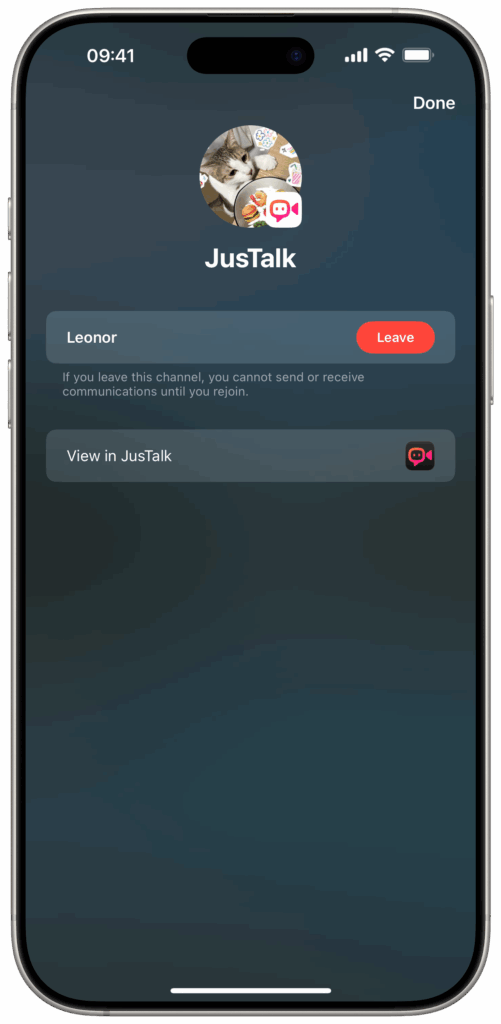
To exit Talkie, simply go back to the Push-to-Talk screen and tap the “Leave” button.
 |